Journal · Design
See It Before We Carve It: Using the Visualizer
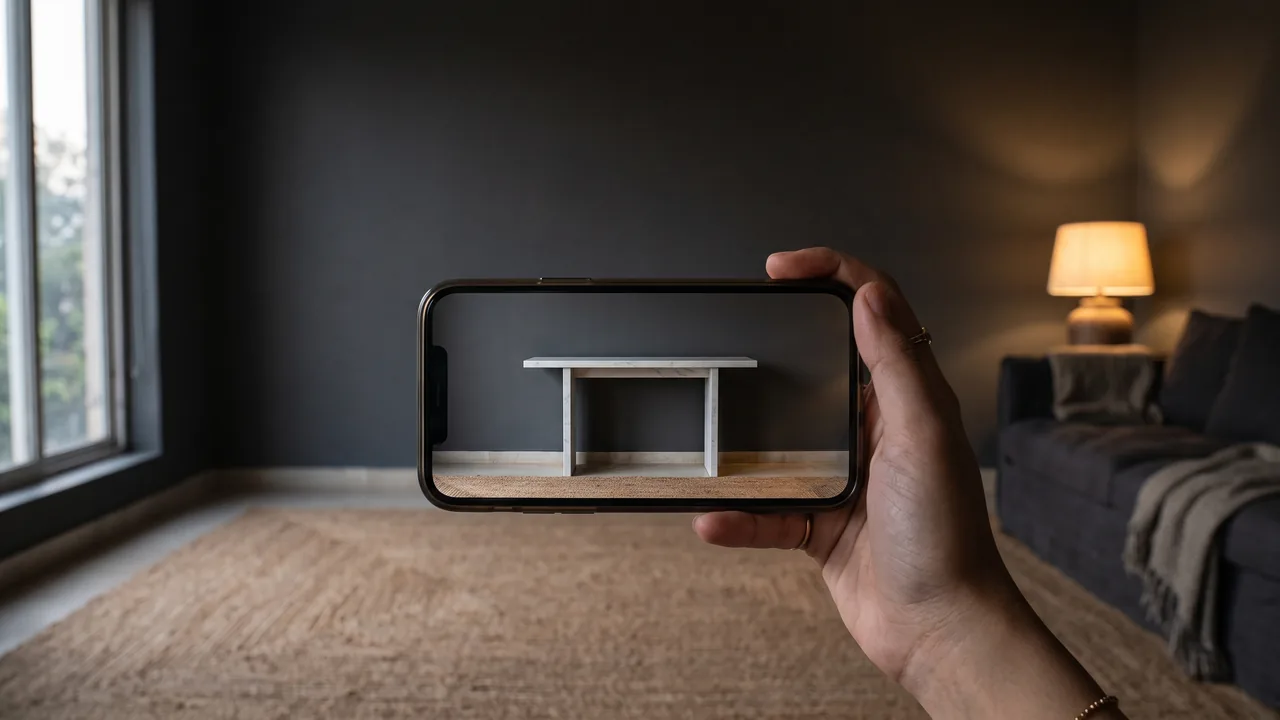
The hardest part of commissioning stone has never been the stone. It is the gap between a slab lying flat in a yard and a finished piece standing in your hall — a gap that swatches, dimensions and even good photographs refuse to close. People can hold a sample of Indian Statuario in their hand, read "260 centimetres" off a page, and still have no idea whether the table will make their dining room or crowd it.
The Visualizer exists to close that gap. It puts a piece from our collection into a photograph of your own room, at the proportion it would really occupy, before a block is opened. It takes about a minute, it costs nothing, and it is the single most useful thing you can do before speaking to us.
It is also frequently used badly — one blurry photograph, one hurried tap, and a result that tells you less than it should. This is how to get the most out of it, and, just as importantly, what it cannot tell you.
What it actually does
The Visualizer works in three steps. You upload a photograph of the space you want to fill — a hall, a living room, a bathroom, a bare wall. You choose a piece from the collection. It renders that piece into your photograph, sitting where you put it, lit roughly the way your room is lit.
Two details are worth knowing before you start. First, you can upload up to four photographs at once — the extra ones help the tool read your room, though the render itself is always built on the first, so make that first photograph your best one. Second, if you would rather not choose blind, the tool will read your room and suggest pieces that suit it — the proportions of the space, the light, what is already there. You can take the suggestion or skip it and browse all fifty-four pieces yourself, across dining tables, consoles, basins, vanities, bathtubs, planters, relief panels, sculpture, fountains, portals and mandirs.
How a piece gets into your photograph depends on the piece, and this is the part most people miss. Each one is labelled on its card: Place & move or AI place. A minority — twelve of the fifty-four at present — carry a cut-out you can drag around your floor and pinch larger or smaller until it sits where it belongs. That positioning stage is genuinely free and unlimited; nothing is spent while you move a table around. The rest are placed for you: press the button and the render begins immediately, with no positioning step in between.
The photograph decides everything
Everything downstream is governed by the photograph you feed in. A good one takes two minutes and is worth more than every other tip here combined.
Shoot from where you live. Stand where you would actually stand when you walk into the room, or sit where you would sit. A photograph taken from the doorway at eye level tells you how the piece greets you; one taken from a corner at knee height tells you nothing you will ever see again.
Keep the phone level. Tilting the camera up or down makes walls lean and floors rise, and a piece placed into a leaning room will look subtly wrong no matter how well it is rendered. Most phones will show you a grid or a level — use it.
Show the floor and the wall. The tool needs the meeting of floor and wall to judge depth and scale. A photograph cropped to a bare wall gives it nothing to stand on.
Daylight, not lamplight. Late morning or afternoon, curtains open, overhead lights off. Stone is read almost entirely through light, and a warm bulb at night pushes a white marble yellow and a dark stone to flat black.
Clear the space you are filling. Move the laundry rack, the boxes, the plastic chair. Not for vanity — the tool has to put a solid object into that space, and a cluttered floor gives it less to work with. Leave the furniture that will stay, because you want to see the piece next to what it will actually live with.
One more thing, easy to miss: photograph the room as it is, not as you hope it will be. The point is a truthful answer, and a truthful answer needs a truthful room.
Choosing the piece
Two habits make the answer sharper.
The first is to test the decision you are actually stuck on. If you cannot decide between a round low table and a rectangular one, render both into the same photograph rather than rendering your favourite twice. If the question is whether a Prastha dining table at 260 centimetres will overwhelm your room, that is a question about proportion — put it in the room and stand back. Comparisons within a category are where the tool earns its keep, and our dining tables and monolith basins are the categories people most often need to see before they can believe.
The second is to keep stone and form as separate questions. A render answers form, weight and placement extremely well. It answers stone character only approximately — so decide the shape here, and decide the material with your eyes on the material itself. Our materials page shows each stone at proper size, and the guide to choosing your stone works through hardness, upkeep and where each one belongs. A Meru basin in Pearl White Quartzite and the same basin in Bhainslana Black are the same object making two entirely different rooms; the Visualizer will show you that difference, but the final word on a stone should come from seeing it.
Reading the render honestly
Every render carries a line under it saying it is an AI visualisation and that the real piece is carved to order. That line is not a disclaimer we hide behind — it is the most important thing on the screen, and here is precisely what it means.
Trust it on proportion. Scale, placement and how much room a piece leaves you are what the tool is built to answer, and it answers them well. If a table looks crowded in the render, it will be crowded.
Trust it on presence. Whether a piece anchors your room or disappears into it, whether a dark stone grounds a bright space or swallows it — a render shows you this far better than a photograph of somebody else's home.
Do not trust it on veining. No render can be accurate about the pattern in your stone, because natural stone is not repeatable. Your block has not been opened yet, and nobody knows exactly what is inside it — including us. What you are seeing is the character of that stone, not its portrait.
Do not use it as a measurement. It is a picture, not a survey. Before you commission anything, measure the space with a tape: the width you have, the clearance you need to walk past, the doorways and lift the piece must come through. On heavier pieces the route into your home matters as much as the room itself.
Do not read the light too literally. The render lights the piece roughly the way your photograph is lit. A polished surface in your afternoon light will behave differently from a honed one in the evening — the difference between the two finishes is set out in honed or polished.
Used this way, the render is not a promise of a photograph. It is an honest rehearsal.
Four renders, and how to spend them
Two visualisations are free on every connection. Leave a WhatsApp number and two more are unlocked — four in total — and a designer from the atelier looks at your room alongside them.
The allowance is deliberately small, and we would rather explain why than pretend otherwise: each render is real computation, and a small allowance keeps the tool free, fast and open to everyone rather than something we have to put behind a form. So spend them with a plan, and mind the difference between the two kinds of piece. On a Place & move piece you can position and resize as long as you like before committing, so do that unhurried and render only when it sits right. On an AI place piece there is no such pause — pressing the button spends one of your allowance straight away. Get the photograph right before you press anything.
Two practical notes. Renders are not kept on our server indefinitely — they are cleared out periodically, so save or download anything you want to keep, or ask us to send it to your phone while it is there. And if you run out mid-thought, that is not the end of it — message us on WhatsApp at +919217353043 with your photograph and we will visualise any piece in your room for you, as many times as it takes. The limit is on the machine, not on our attention.
From render to real stone
A render is where a commission starts, not where it ends. When one of them stops you — when you look at your own hall with a piece standing in it and something settles — send it to us. Every render can go straight to the atelier on WhatsApp, which saves you describing what you have in mind: we can see the room, the light and the piece you chose.
From there the work becomes real and physical. We talk through the stone and the proportions, tune the dimensions to your space rather than to a catalogue, choose the block, and photograph the actual slab so you agree the material before a single cut is made. Then it is carved to order in our New Delhi atelier and finished by hand. That sequence is set out in full on the process page, and if it is the money you want to understand first, what custom stone furniture costs, and why takes an itemised quote apart line by line. Anything in the collection can be adapted, and anything you cannot find can be commissioned outright — the range runs from a side table to a courtyard fountain, and the honest summary of what we do is that almost anything can be carved from a single block of stone.
Start with the photograph. Everything else follows from it. Imagine It. Visualize It. We Build It.
Imagine It. Visualize It. We Build It.
Stand it in your own room
Take one level photograph in daylight, upload it, and see a piece from the collection in your space in about a minute. Free, no obligation — and if you would rather we did it for you, send the photo to the atelier on WhatsApp.
Frequently asked questions
What is the Indic Decor Visualizer?
It is a free tool on our website that places a piece from our collection into a photograph of your own room, so you can see the proportion, the colour and the weight of it in your space before anything is carved. You upload a photo of the room or wall, choose a piece, position it, and the render comes back in about a minute. It is a visualisation, not a photograph of a finished piece — the real one is carved to order from a block chosen with you.
How many visualisations can I make?
Two are free on every connection. If you leave a WhatsApp number, two more are unlocked, giving four in total, and a designer from the atelier looks at your room alongside them. How you spend one depends on the piece: those labelled Place and move let you position and resize as long as you like before you commit, so only the final render counts, while those labelled AI place render as soon as you press the button. Beyond the allowance, message us on WhatsApp and we will visualise any piece in your room for you, as many times as it takes.
What photograph works best?
A level, straight-on photograph in daylight, taken from where you would normally stand or sit, showing the floor and the wall where the piece would go, with the space itself reasonably clear. Avoid extreme wide angles, night-time phone shots and heavy clutter. The render can only be as good as the photograph it is built on, so two minutes of tidying and one careful shot changes the result more than anything else you can do.
Is the render an accurate picture of the stone I will receive?
It is accurate about form, proportion and how a piece sits in your room. It cannot be accurate about the exact veining, because natural stone is not repeatable — every block is different, and the block for your piece has not been opened yet. Treat the render as a true guide to scale and character, and treat the veining as an impression. When the commission begins, we photograph the actual slab and agree it with you before anything is cut.
How long are my renders kept?
Renders are not kept on our server indefinitely — they are cleared out periodically. Save or download anything you want to keep, or ask us to send it to your phone on WhatsApp while it is still there. If a render has already gone, tell us the room and the piece and we will make it again.